
What is the Maintainer?
Within the app, there are three distinct types of account access designed to accommodate different users. The first type of access is designated for the account owner, which is typically the homeowner or an account administrator responsible for managing the overall system. This level of access allows full control over the app’s settings, monitoring, and adjustments.
The second type of access is designated for the Maintainer, which typically refers to a pool service company, builder, or anyone responsible for maintaining the pool. With a Maintainer account, you can conveniently access all of your Attendant systems from a single, easy-to-navigate list, available through your personalized account. Additionally, your company’s logo and contact information will be prominently displayed on your clients’ app home screens and in the “Contact Us” section, providing a professional touch and ensuring your services are easily accessible to them.
The third type of access is granted through permissions. To learn more, click HERE to read the full article on permissions.
How to Add a Maintainer
In the Poolside Tech App, tap the hamburger menu located in the top right corner.
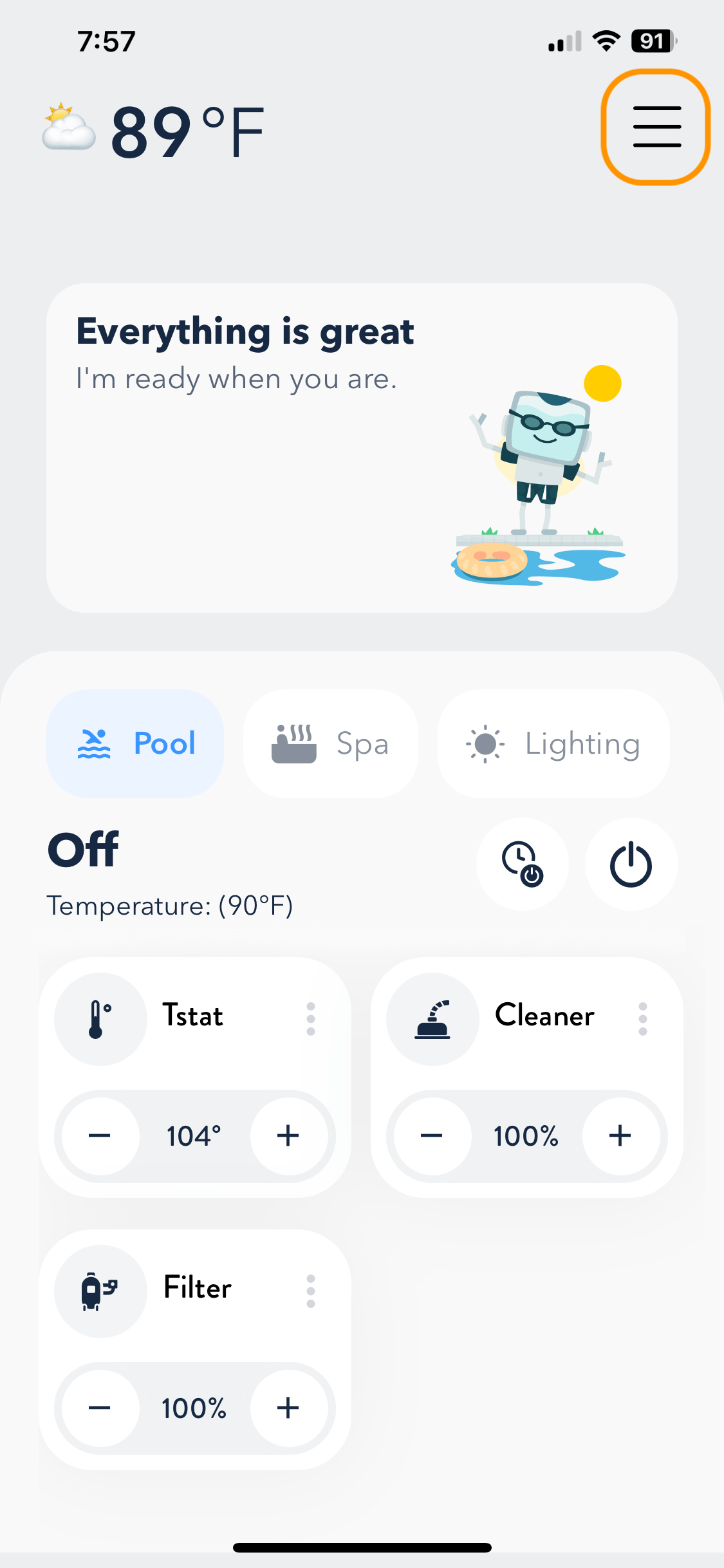
When the menu opens, select the “Sites” option.
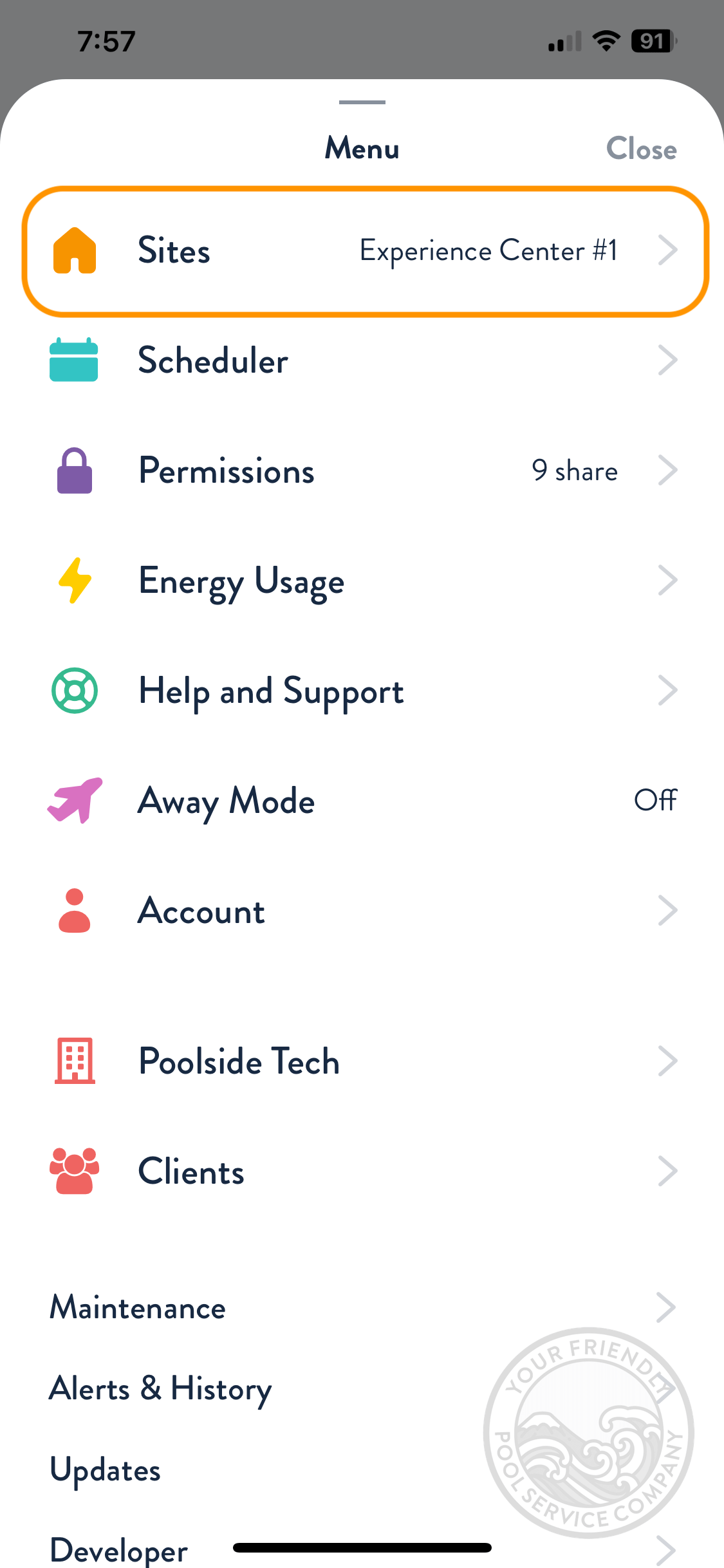
After the Sites menu appears, choose the desired Site by tapping the > to the right of the site’s name.

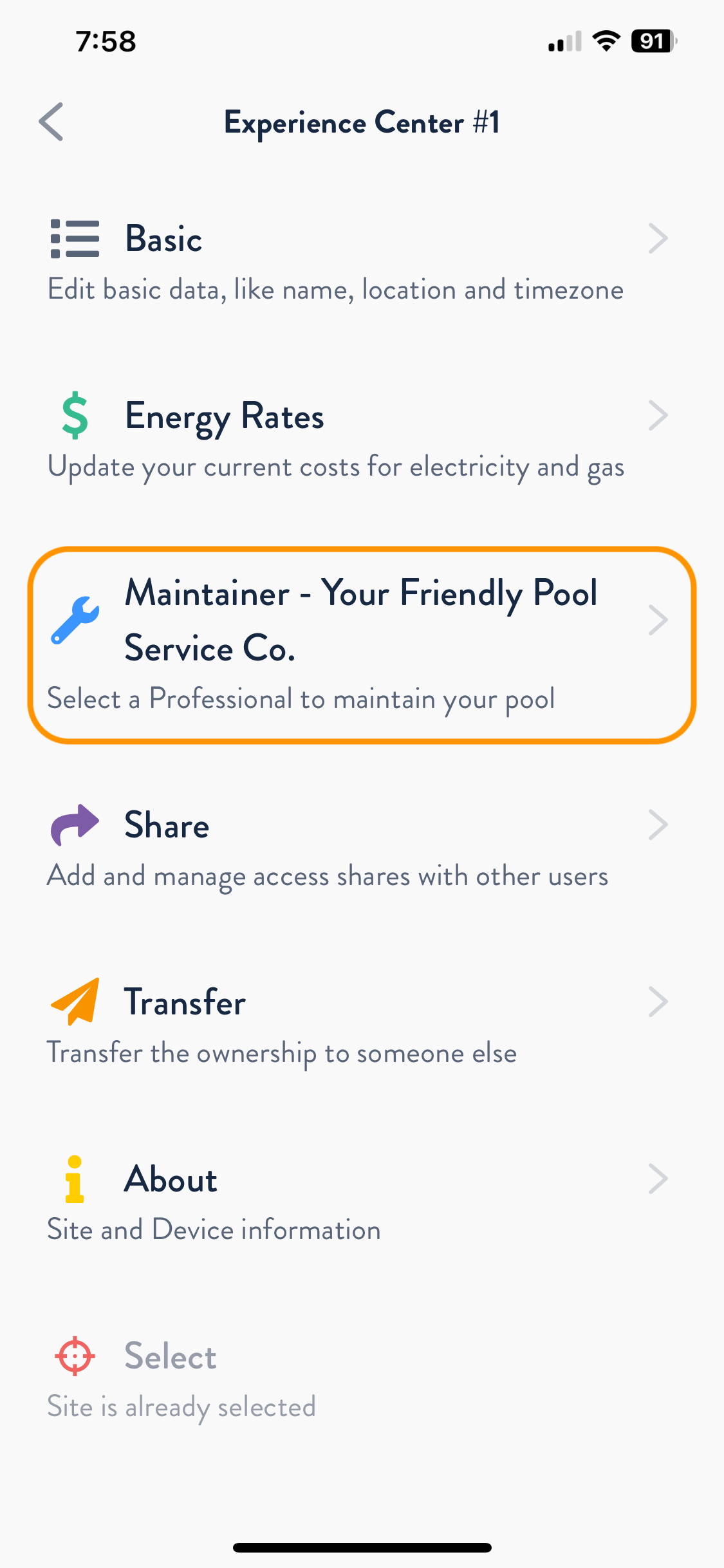
Once inside the selected site’s menu, tap “Maintainer.”
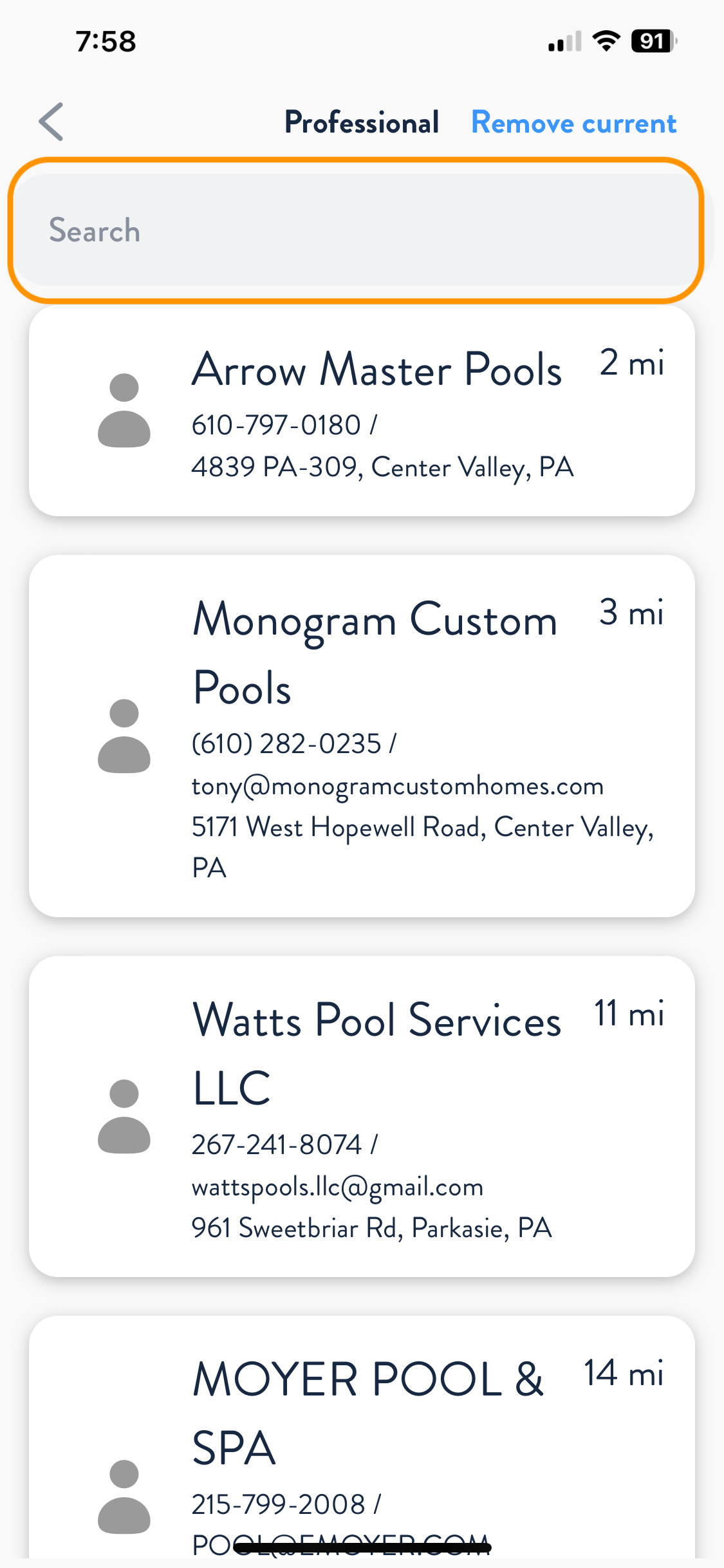
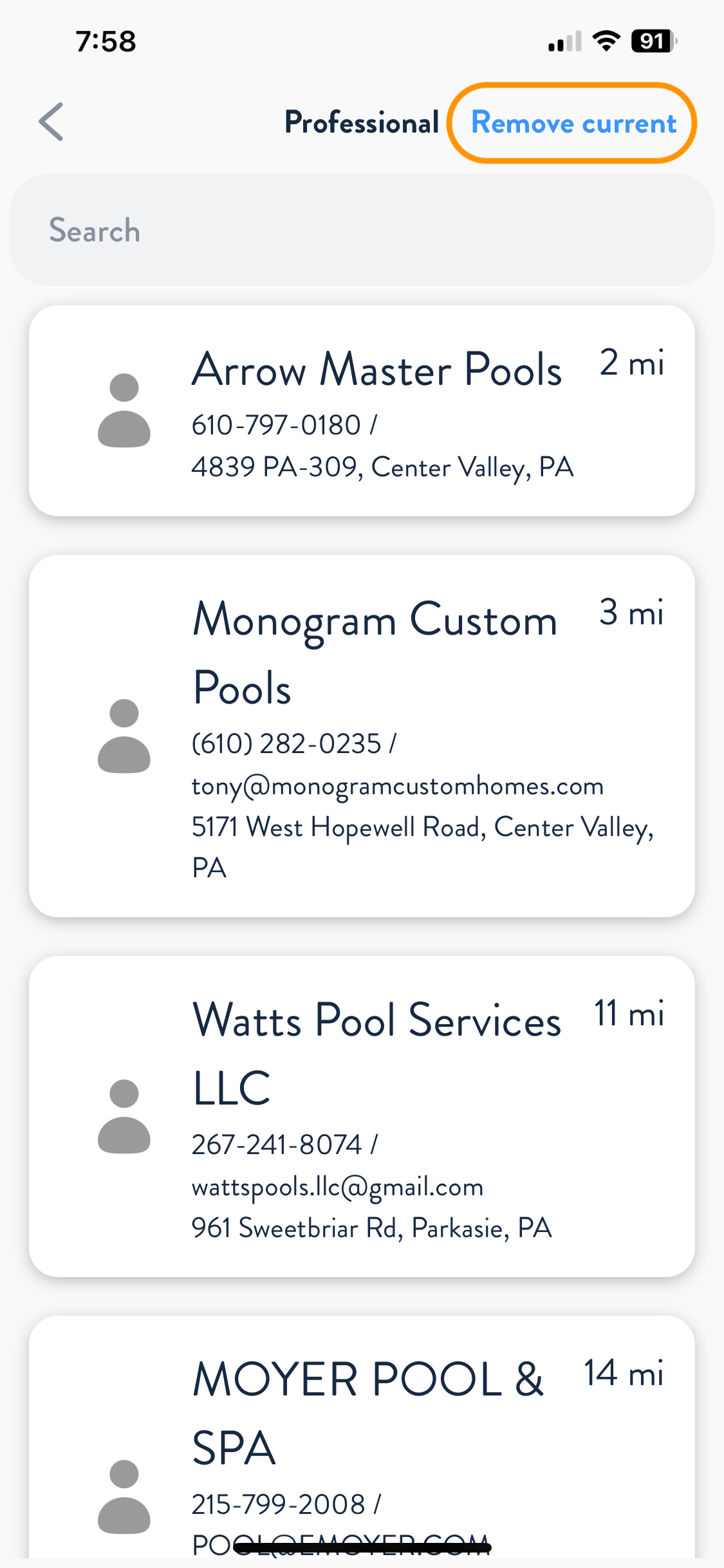
The Professional Maintainer list will now display all local companies near the site address, sorted by proximity. You can either scroll through the list or use the search bar to find the specific company you’re looking for. Once you tap on the specific company, it will now become the site Maintainer.
How to Remove the Maintainer
In the Poolside Tech App, tap the hamburger menu in the top right corner.
When the menu opens, select “Sites.”
After the Sites menu appears, choose the desired site by tapping on the > to the right of the site’s name.
Once inside the selected site’s menu, tap “Maintainer.”
In the Professional Maintainer sites menu, you’ll find a “Remove current” button in the top right corner. Selecting this will remove the current maintainer from the site.
How to Become a Maintainer
To become a Maintainer, click HERE and complete the form. Processing typically takes 1-2 business days, after which your information will appear on the list.